/api/ to /v1/my/api/path/ means a request to /api/user/1 reaches the component as /v1/my/api/path/user/1.
Validated on 30 Mar 2023 • Last edited on 6 Feb 2026
App Platform is a fully managed Platform-as-a-Service (PaaS) that deploys applications from Git repositories or container images. It automatically builds, deploys, and scales components while handling all underlying infrastructure.
When you deploy an app to App Platform, components are assigned URL paths. You can rewrite these paths to different ones within the app or redirect traffic to other domains or URLs using the control panel.
Rewrites and redirects serve similar purposes but work differently:
Rewrites: Rewrites map an incoming path to an internal app component path without displaying any URL changes to the user. For example, if your component exposes the internal path /node-app/api/products, you can create a rewrite so users connect using a cleaner path like /products. Requests to /products are routed internally to /node-app/api/products, and the browser URL remains /products. Rewrites only work within the same app and cannot route to external domains.
Redirects: Redirects send users from one path to a different URL, and the browser shows the new URL. Redirects can point to internal paths or external domains. For example, you can redirect /products to https://store.example.com. Users who visit /products/ are then sent to the new domain and can see the URL change.
Rewrites and redirects are mutually exclusive for the same incoming path. This means a rewrite rule can’t be applied to a path that already has a redirect rule, and vice versa. Rewrites are configured at the component level, whereas redirects are configured at the app level.
You can set up a rewrite by adding a component routing rule. Go to the Apps page, click your app, then click the Networking tab. In the Component routing rules section, click Add routing rule.

Use the settings in the Add a component routing rule dialog to configure a rewrite:
/api/), or leave it blank (or /) to match all requests. If you select Match all incoming domains, you must enter a route path./v1/my/api/path/). Because rewriting replaces the original path, the options Trim Prefix and Preserve Full Path cannot be used with rewrites./api/ to /v1/my/api/path/ means a request to /api/user/1 reaches the component as /v1/my/api/path/user/1.
Target component: Select the component to route requests to.
Configure CORS: Optionally customize CORS response headers if the rewritten path will be accessed from a different origin (for example, JavaScript fetch or XHR). The options are:
Click Add routing rule to save.
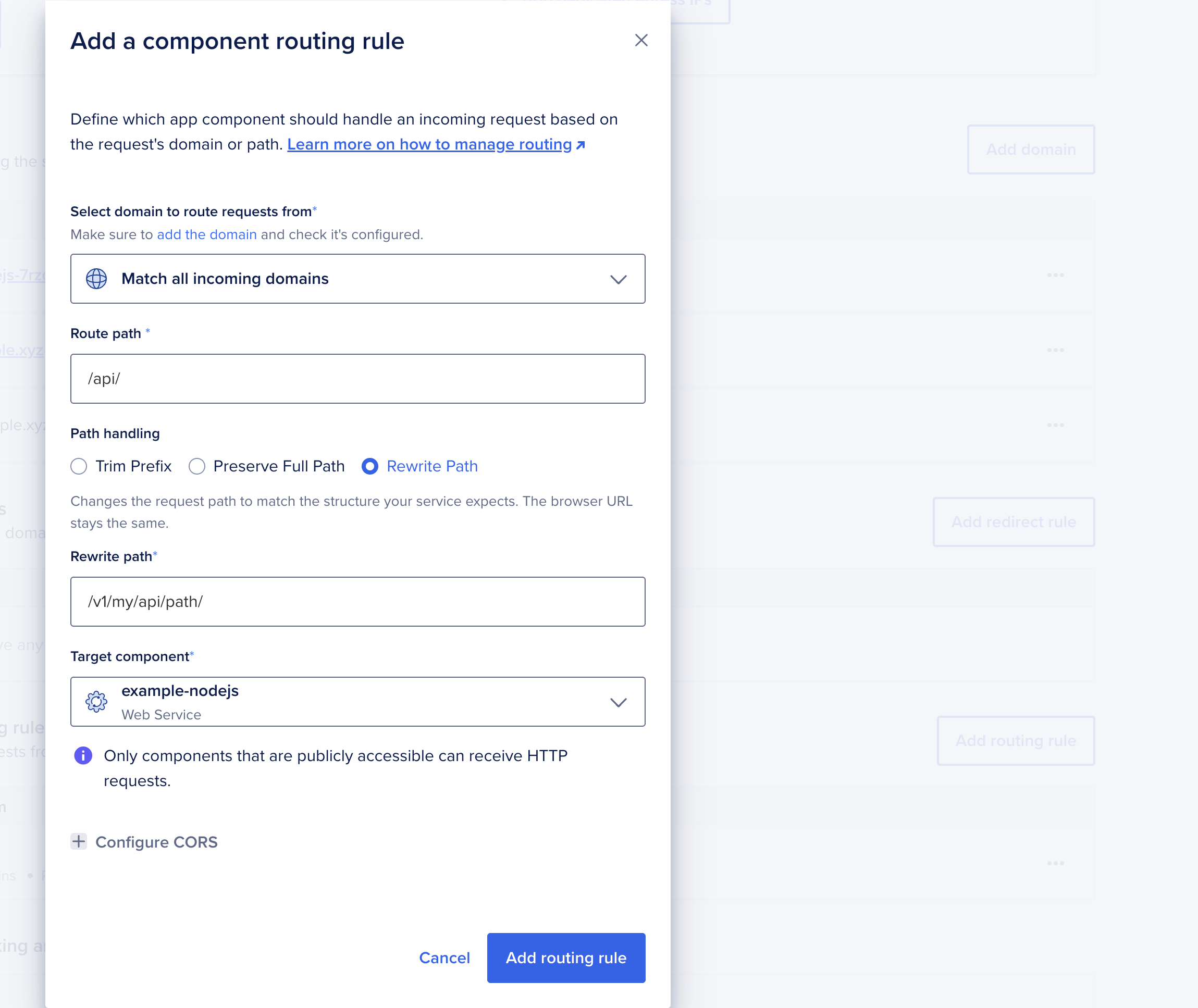
The image above shows a rewrite that intercepts requests to the /api/ path from any domain and rewrites them to /v1/my/api/path/ on the selected app component. The browser URL remains unchanged. Subpaths are preserved, so a request such as /api/user/1 reaches the component as /v1/my/api/path/user/1.
Go to the Apps page, click your app, then click the Networking tab. In the HTTP redirect rules section, click Add redirect rule.

Use the settings in the Add HTTP redirect rule dialog to configure a rewrite:
/* to redirect all pages under a path, or leave the field blank to redirect the entire domain.
Redirect to: Choose Domain or path in app to redirect to another page or path in the same app, or choose External URL to redirect to a different website.The remaining settings in the dialog change depending on whether you select Domain or path in app or External URL.
Select domain to redirect traffic to: Choose the target domain if you’re redirecting within the app, or select Use requesting domain to keep the original domain in the redirect.
Route path (Optional): Specify the destination path for the redirect. Leaving this field blank preserves subpaths from the source route when * is used in the source path.
/products/* to /store/ sends /products/shoes to /store/, not /store/shoes. To preserve subpaths, use * in the source path and don’t specify a path for the target.
Status code: Choose a status code for the redirect:
Configure CORS: Optionally customize CORS response headers if the redirected path receives cross-origin requests (for example, JavaScript fetch or XHR). The options are:
Click Add redirect rule to save.
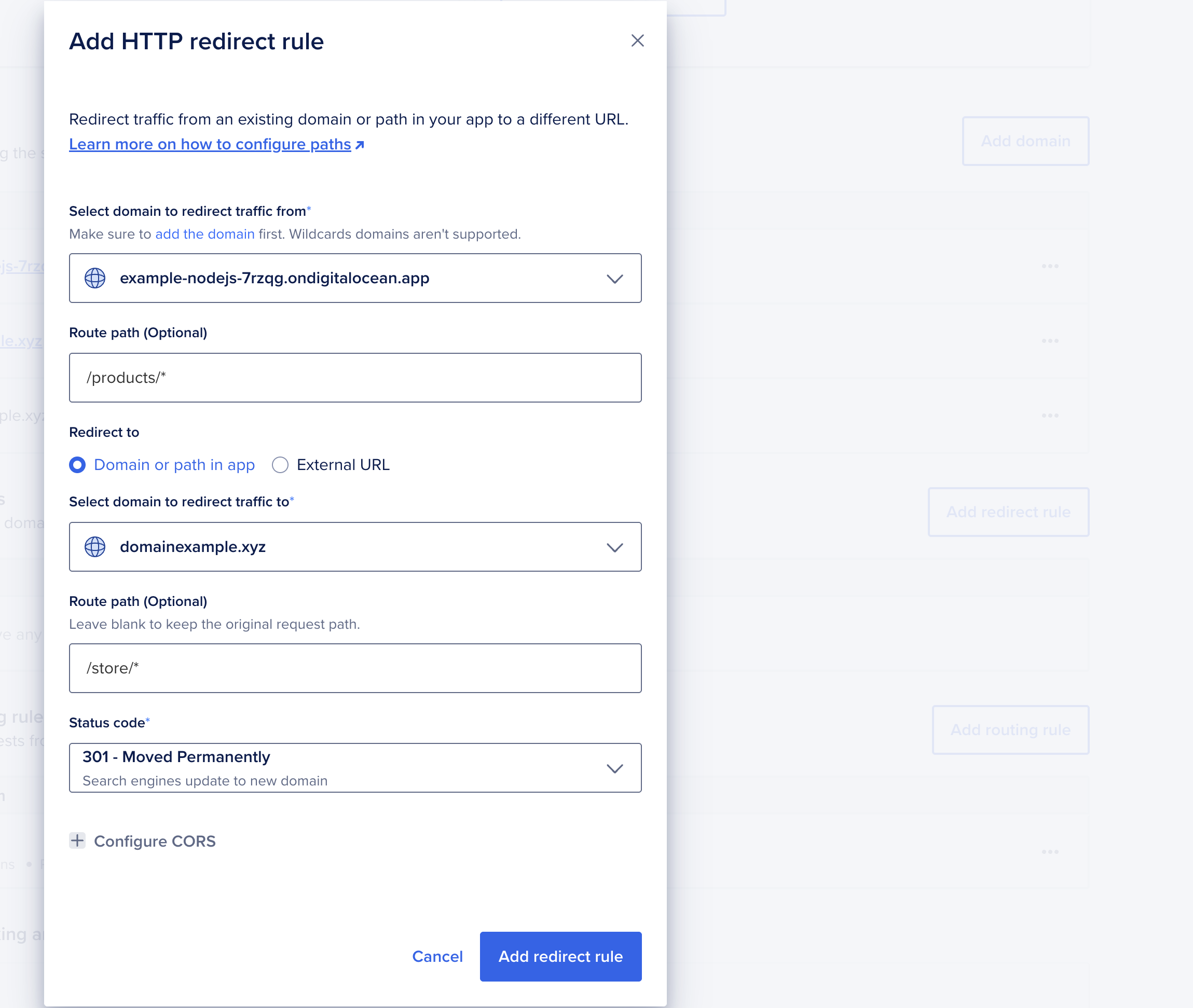
The image above shows traffic to /products/* on example-nodejs-7rzqg.ondigitalocean.app being redirected to the custom domain domainexample.xyz. The traffic follows the same subpath under /store/*. The * preserves subpaths, so /products/shoes becomes /store/shoes.
Enter URL to redirect traffic to: Enter the external domain where you want to send incoming traffic (subpaths are preserved automatically if the source path uses *).
/products/* to /store/ sends /products/shoes to /store/, not /store/shoes. To preserve subpaths, use * in the source path and don’t specify a path for the target.
Status code: Choose a status code for the redirect:
Redirect port (Optional): Enter the port number if the external URL uses a non-standard port (anything other than 80 for HTTP or 443 for HTTPS). Leave the field blank to use the default port.
Protocol: Choose HTTPS or HTTP to match the external server’s protocol.
Configure CORS: CORS headers can be configured, but note that they only apply if your app serves the response. They do not affect the external destination. The options are:
Click Add redirect rule to save.
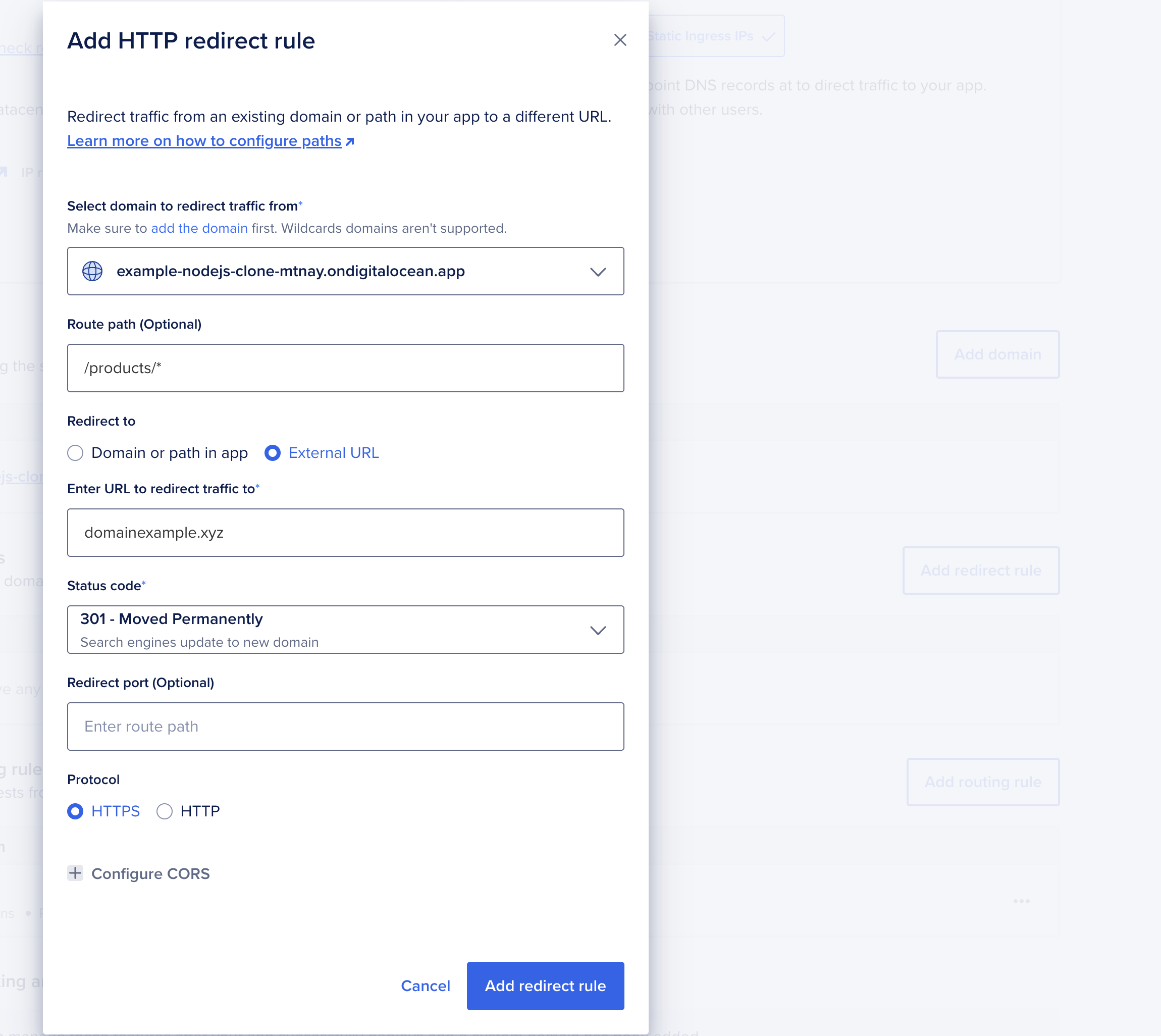
The image above shows traffic to /products/* on example-nodejs-7rzqg.ondigitalocean.app being redirected to the external domain domainexample.xyz. The redirect uses HTTPS on the default port. The * preserves subpaths, so a request such as /products/shoes redirects to https://domainexample.xyz/products/shoes.
Try using different keywords or simplifying your search terms.